Unlock the CapCut Adam Voice Generator for Free: Your Guide to AI Voices
Unlock the CapCut Adam voice generator for free! Learn how to create and customize AI voices for your content with our easy guide.
Category: AI & ProductivityEver wanted to make your videos or podcasts sound more professional without hiring a voice actor? The CapCut Adam voice generator free option is a game-changer. It lets you take your text and turn it into speech that sounds pretty darn human. This guide will walk you through how to use this tool, tweak the voices, and get them into your projects, all without costing a dime. It's simpler than you might think, and honestly, it makes a big difference.
Key Takeaways
- The CapCut Adam voice generator can be used for free, making professional-sounding audio accessible.
- You can generate AI voices from text and then customize their speed and pitch.
- CapCut offers tools to apply voice filters and improve overall audio quality.
- The Adam voice is suitable for various projects, from videos and podcasts to marketing content.
- Exploring different voice options and customization settings helps create a unique brand sound.
Accessing the CapCut Adam Voice Generator for Free
Understanding the Adam AI Voice
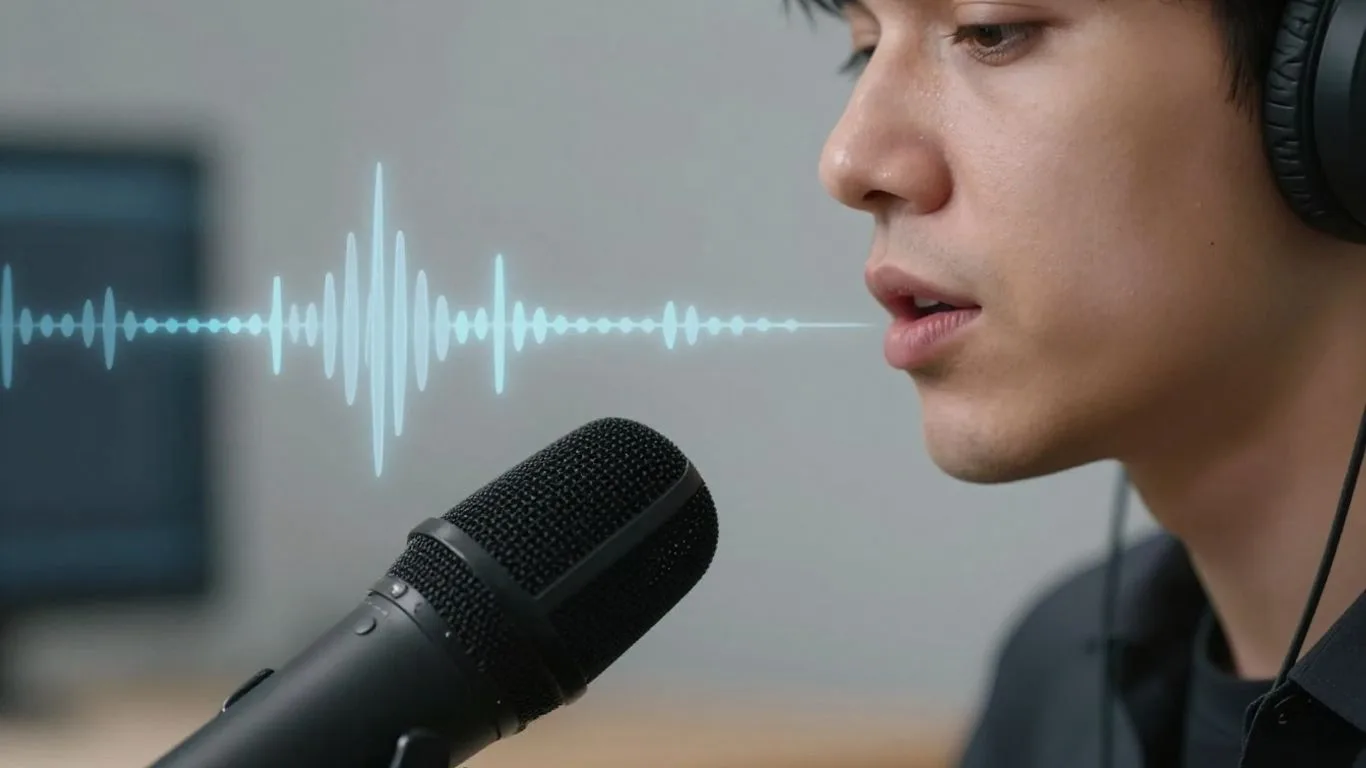
So, you've heard about the CapCut Adam voice, right? It's basically a text-to-speech tool built right into CapCut. Think of it as a way to turn your written words into spoken audio without needing a microphone or any fancy recording gear. This is a game-changer if you're not comfortable recording your own voice, or maybe you're just short on time. It makes adding voiceovers to your videos, presentations, or even podcasts super simple. You just type what you want to say, and the AI does the rest, giving you a natural-sounding voice.
Key Features of the Adam Voice Generator
CapCut's voice generator, including the Adam voice, comes with some pretty neat features that make it stand out. For starters, it supports a bunch of different languages, which is great if you're making content for a wider audience. The voices themselves sound pretty realistic, not like those old-school robotic ones you might have heard before. They even have different tones, so you can pick one that fits the mood of your video.
Here's a quick rundown:
- Multiple Languages: Supports many languages, making your content accessible globally.
- Realistic Voices: AI-generated voices that sound natural and expressive.
- Customization Options: Adjust speed, pitch, and volume to match your needs.
- Time-Saving: Quickly convert scripts to audio in just a few clicks.
- Integrated Workflow: Works directly within the CapCut editor, no extra software needed.
The biggest advantage is how easy it is to get professional-sounding audio without any prior experience or expensive equipment. It really lowers the barrier to entry for creating polished content.
Why Choose the Adam Voice for Your Content
Choosing the Adam voice, or any of the AI voices in CapCut, can really make your content pop. If you've ever struggled with background noise during recordings, or found yourself spending ages editing out mistakes, this tool bypasses all that. It's perfect for explainer videos, marketing materials, or even just adding a narrative layer to your social media posts. Plus, since it's integrated into CapCut, you can generate your voiceover and then immediately start editing your video, all in one place. It streamlines the whole process, letting you focus more on the creative side of things rather than the technical hurdles of audio production.
Generating Your Adam Voice with CapCut
So, you've decided the Adam voice is the one for your project. Great choice! It’s a really natural-sounding male voice that works for a lot of different things, from videos to podcasts. The good news is that CapCut makes it pretty straightforward to get your text turned into speech using this AI voice. You don't need to be a tech wizard or have a fancy studio setup. If you've ever felt shy about recording your own voice, or just don't have the time, this is a solid solution.
Step-by-Step Guide to Text-to-Speech
Getting your words spoken by the Adam AI voice in CapCut is a simple process. Here’s how you do it:
- Open Your Project: Start by opening your video or project in CapCut. If you don't have one yet, you can create a new project.
- Find the Text-to-Speech Feature: Look for the 'Text' option in the toolbar, usually at the bottom. Once you tap on 'Text,' you should see an option for 'Text to speech.'
- Select the Adam Voice: Inside the Text to speech menu, you'll find a list of available AI voices. Scroll through or search until you find 'Adam.' You might see a few variations, so pick the one that best suits your needs.
- Enter Your Text: Type or paste the script you want the Adam voice to read into the provided text box. Make sure it's exactly what you want to say.
- Generate the Audio: Hit the 'Generate' or 'Confirm' button. CapCut will then process your text and create an audio clip using the Adam voice. This audio will be added as a track to your project timeline.
Customizing Voice Parameters
Once you've generated the basic audio, you can tweak it to sound just right. CapCut gives you a few controls to play with:
- Speed: You can speed up or slow down the playback of the generated voice. This is handy if you need to fit a lot of words into a short time, or if you want a more deliberate, slower pace.
- Pitch: Adjusting the pitch can change the overall tone of the voice. You can make it sound a bit higher or lower, which can add a different feel to the narration.
- Volume: Naturally, you can control how loud the voice is relative to other audio in your project.
Remember to listen to your generated audio multiple times after making adjustments. Sometimes small changes can have a big impact on how the voice comes across to your audience. It's all about finding that sweet spot where it sounds natural and fits the mood of your content.
Exporting Your AI-Generated Audio
After you're happy with the voice and any adjustments you've made, it's time to get the audio out of CapCut. You can export just the audio file, or export the entire video with the voiceover included. To export, look for the export icon (usually an arrow pointing upwards) in the top right corner of the app. You can then choose your desired resolution and frame rate before saving it to your device or sharing it directly.
Advanced Customization and Enhancement Tools
Adjusting Speed and Pitch for Impact
So, you've got your text turned into speech with the Adam voice, which is pretty cool on its own. But what if you want it to sound a bit more… you? Or maybe you need it to fit a specific mood for your video. That's where tweaking the speed and pitch comes in. Think about it like this: a super fast, high-pitched voice might sound excited or even a little frantic, perfect for a quick announcement or a funny skit. On the other hand, slowing it down and lowering the pitch can make it sound more serious, calm, or authoritative, which is great for explainer videos or more formal content.
Here’s a quick rundown of what you can do:
- Speed: Making the voice faster or slower. This is great for controlling the pacing of your narration.
- Pitch: Making the voice higher or lower. This can change the perceived emotion or character of the voice.
- Duration: Sometimes, you can even adjust how long certain sounds or words are held, adding a bit more expressiveness.
Experimenting with these settings is key to making the AI voice feel more natural and engaging for your audience. It’s not just about reading words; it’s about conveying a feeling.
Applying Voice Filters and Effects
Beyond just speed and pitch, CapCut lets you play around with different voice filters and effects. This is where you can really start to shape the character of your audio. Want your voiceover to sound like it's coming through an old radio? There's a filter for that. Need it to sound like it's echoing in a large hall? You can do that too. These effects can add a lot of personality and context to your audio, making it more interesting than a plain voice recording.
Some common effects you might find include:
- Reverb: Adds an echo effect, making the voice sound like it's in a larger space.
- Echo: Similar to reverb, but often more distinct repetitions.
- Distortion: Can make the voice sound rougher, like it's coming through a bad speaker or a phone line.
- Chorus: Creates a thicker, richer sound by layering slightly detuned versions of the voice.
These tools are fantastic for setting a specific scene or mood in your videos. Don't be afraid to try them out; you might discover a sound that perfectly fits your project.
Improving Audio Quality with Enhancement Tools
Sometimes, even with the best voice generation, your audio might need a little polish. CapCut often includes tools to clean up your sound. This could mean reducing background noise that might have crept in, or making sure the overall volume is consistent. Good audio quality is super important; nobody likes listening to something that sounds fuzzy or has sudden loud noises. These tools help make your AI-generated voiceovers sound professional and easy to listen to, no matter what kind of content you're creating.
Clean audio makes a big difference in how professional your content looks and sounds. Even simple adjustments can make your voiceovers much more pleasant for viewers and listeners.
Leveraging the Adam Voice for Diverse Projects
It’s wild how AI voices like Adam can fit into so many different projects. With an easy-to-understand tone and natural style, Adam’s AI voice doesn’t just sound real—it creates a fresh way to connect with listeners, viewers, and even gamers. Below, you’ll see how folks are really making the most of the Adam voice for all sorts of uses, and why it can make your content pop just a bit more than standard narration.
Enhancing Videos and Podcasts
If you often make online content, having a reliable voice that doesn’t sound robotic is clutch. Adam is popular for:
- Smooth video narration for YouTube, social media, explainer clips, and training tutorials.
- Podcast intros, sponsor reads, or full-episode narration that sound consistent from episode to episode.
- Creating character voices for animated projects or dubbing over international content.
Here’s how Adam stacks up across different media:
| Use Case | Impact of Adam Voice |
|---|---|
| YouTube Videos | Lifelike narration, faster output |
| Podcasts | Consistent sound quality |
| Audiobooks | Engaging, natural storytelling |
| Gaming | Quick, varied voice line creation |
| Social Media Shorts | Attention-grabbing voiceovers |
Making just a few tweaks to a script, then hearing it back with the Adam voice can change the feel of an entire project.
Creating Engaging Marketing Content
Marketing is all about grabbing attention. Adam’s voice makes this easier by sounding friendly and upbeat, which works for:
- Ad campaigns—voiceovers for short product videos or longer presentations, without having to hire talent every time.
- Explainer videos and product demos where you need clear, energetic narration.
- Dynamic social ads, like TikTok or Instagram Reels, to catch people’s ears as they scroll by.
A small marketing team can just type in their taglines or script, and instantly turn them into high-quality audio. That means no waiting on recording studios or reshoots for minor changes.
Personalizing User Experiences
Adam’s flexibility isn’t only about language support and voice quality. It’s also about making digital interactions more engaging, such as:
- Adding custom greetings or instructions for customer support bots.
- Generating birthday wishes, reminders, or tailored news for mobile apps.
- Making voice packs for games or messaging tools, bringing a personal spin to all kinds of alerts and interactions.
You can even record your own voice and let AI generate something even more lifelike, as shown in CapCut's AI voiceover tool.
- Voiceovers for presentations, trainings, or e-learning courses
- Fun, memorable messages for events or holidays
- Voice avatars for games, apps, or chat tools
The Adam voice lets solo creators and small businesses give their content a bigger, more professional presence, while keeping costs and hassle low.
Exploring Alternatives and Advanced Features
Understanding AI Voice Generation Technology
So, you've been playing around with CapCut's Adam voice, and it's pretty neat, right? But what exactly is going on under the hood? AI voice generation, or text-to-speech (TTS) as it's often called, is basically teaching computers to read text out loud. It's not just about stringing words together; modern systems use complex machine learning models, often trained on massive amounts of human speech. These models learn the nuances of pronunciation, intonation, and even emotion. Think of it like a super-smart parrot that doesn't just repeat but understands how to sound natural. The goal is to make the synthesized voice sound as human as possible, which is why you hear different voices like Adam having their own unique character.
Replicating Voices with AI Cloning
Beyond just using pre-made voices like Adam, there's a whole other level: AI voice cloning. This is where things get really interesting, and maybe a little sci-fi. Voice cloning technology allows you to create a digital replica of a specific person's voice. You feed the AI a sample of the voice you want to clone – sometimes just a few minutes is enough – and it learns its unique characteristics. Once trained, the AI can generate new speech in that exact voice, saying anything you type. This is powerful for creating highly personalized content or for situations where you need a very specific voice that isn't available off-the-shelf. However, it also brings up ethical questions about consent and misuse, so it's something to be aware of.
Comparing Voice Options for Your Needs
When you're looking for the right AI voice, it's not a one-size-fits-all situation. Different voices are suited for different jobs. Adam, for instance, is great for a friendly, educational, or social media vibe. But what if you need something more serious for a documentary, or a very specific accent for a character? It's smart to test a few out.
Here's a quick way to think about it:
- Purpose: What kind of content are you making? A podcast, a YouTube explainer, an audiobook?
- Tone: Do you need something energetic, calm, authoritative, or empathetic?
- Audience: Who are you trying to reach? A younger audience might respond better to a different voice than an older one.
Many platforms, including CapCut, let you preview voices or even generate short test clips. Don't be afraid to experiment! Try your script with a couple of different voices to see which one feels right. Sometimes, a voice you didn't expect can be the perfect fit.
Choosing the right AI voice is like picking the perfect actor for a role. It needs to fit the character and the story you're telling. A voice that sounds great for a kids' cartoon might fall flat for a serious news report. Always consider the overall mood and message you want to convey.
Maximizing Your Free CapCut Voice Generation

Getting the most out of CapCut’s free voice generation tools isn’t just about picking a voice and hitting export; there’s a lot you can do to level up your projects, from language options to creating totally unique brand sounds. Let’s walk through some practical ways to stretch CapCut’s features—all without spending a dime.
Utilizing Multi-Language Support
CapCut doesn’t limit you to just one language. You get a wide selection, which is handy if your audience isn’t just English speakers.
- Over 15 languages available, including Spanish, Mandarin, Thai, and French.
- Great for subtitles, international marketing, or teaching projects.
- Different accents and regional flavors can help make your message clearer and more relatable.
| Language | Accent Options | Popular Use Cases |
|---|---|---|
| English | US, UK, AU | Podcasts, YouTube, Ads |
| Spanish | Latin, Spain | Marketing, Tutorials |
| Mandarin | Mainland, TW | E-Learning, News |
| Thai | Standard | Social Media, Presentations |
Trying out various languages and dialects can help you catch the ear of people you’d otherwise miss out on.
Generating Multiple Voice Versions
Sometimes one version isn’t enough. With CapCut, switching up the style or mood is quick.
- Use different voice styles (casual, dramatic, formal, etc.) for the same script to see what fits best.
- Tweak the speed and intonation for each version, especially if you want to test what works on different platforms.
- Save multiple audio files for A/B testing or future tweaks.
Creating extra audio options gives you flexibility when editing; not every project nails it on the first try.
Building a Unique Brand Sound
A recognizable voice can be a game-changer for brand identity, even if you’re just starting out.
- Pick a consistent voice for all your videos, intros, or ads to help listeners connect your sound to your name.
- Try out subtle changes in pitch or speed that fit your style but don’t stray too far from the original.
- Take notes on what gets good feedback in your analytics—it’s not just the visuals that keep people coming back.
A little trial and error with voice selection and tweaks can lead to a signature sound that sticks—no fancy gear required.
If you approach CapCut with an experimental attitude, you’ll find you can get a lot more mileage from its free tools, and honestly, sometimes that’s what helps your content stick out in a pretty crowded world.
Wrapping It Up
So there you have it. Using the CapCut desktop editor, you can get that Adam voice, or a bunch of other cool AI voices, without spending a dime. It’s pretty neat how far this tech has come, making it easier for anyone to add professional-sounding narration to their videos or projects. Whether you're making a quick social media clip or something a bit more involved, having access to these tools for free really changes the game. Give it a try and see what you can create!
Frequently Asked Questions
What is the Adam voice in CapCut?
The Adam voice is a special AI voice you can use in CapCut. It sounds like a real person, a friendly male voice, that makes your videos and other projects sound more natural and engaging. It's great for telling stories or explaining things.
How can I use the Adam voice for free?
You can use the Adam voice for free within the CapCut app or desktop editor. Just go to the text-to-speech feature, find the Adam voice option, and type in what you want it to say. CapCut lets you do this without paying any money.
Can I change how the Adam voice sounds?
Yes, you can! CapCut lets you tweak the Adam voice. You can make it talk faster or slower, change its pitch (how high or low it sounds), and even add cool effects or filters to make it sound unique. It's like having a voice toolbox!
What kind of projects can I use the Adam voice for?
You can use the Adam voice for almost anything! It's awesome for making videos more interesting, adding narration to podcasts, creating catchy ads for businesses, or even making personalized messages for friends and family. It makes your content stand out.
Does the Adam voice support different languages?
While the Adam voice is primarily an English voice, CapCut offers many other AI voices that support multiple languages. This means you can create content in different languages if needed, reaching a wider audience with your projects.
Is the Adam voice good for professional use?
Absolutely! The Adam voice sounds very realistic and professional, making it perfect for business projects like marketing videos, e-learning courses, or even client work. Its natural sound helps make your message clear and impactful.